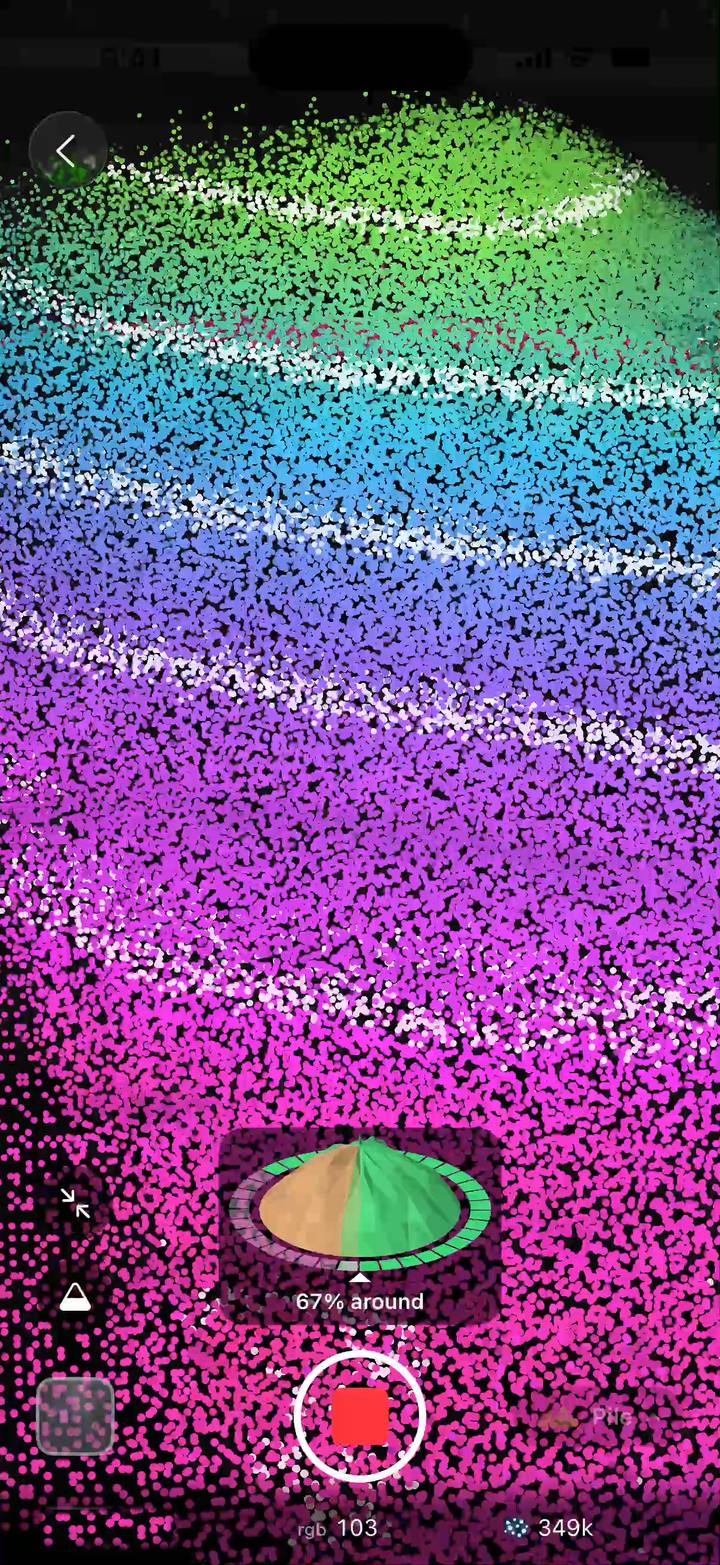
Live 3D preview
Watch the pile fill in, colored by height, while you walk.
Stockpile Scan for iPhone
Stockpile Scan turns a short walk around gravel, sand, mulch or soil into a 3D model, a measured volume and a shareable report — all on your iPhone.
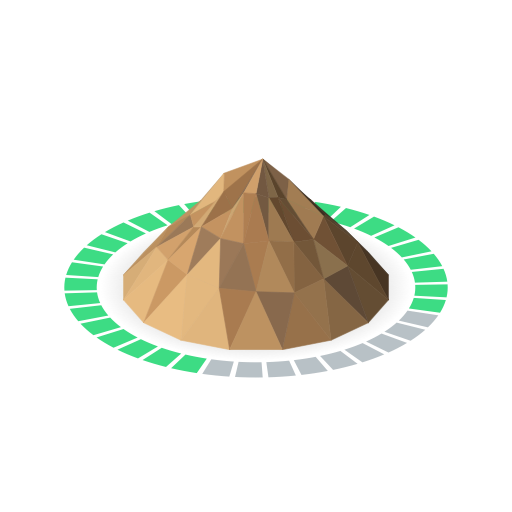
The guide’s ring turns green as you cover each side, and all green once you’re all the way around.
Photos are aligned and turned into a 3D surface right on the phone. Your photos are never uploaded.
In cubic yards, cubic meters or cubic feet, with its ± range and a weight estimate.
Watch the pile fill in, colored by height, while you walk.
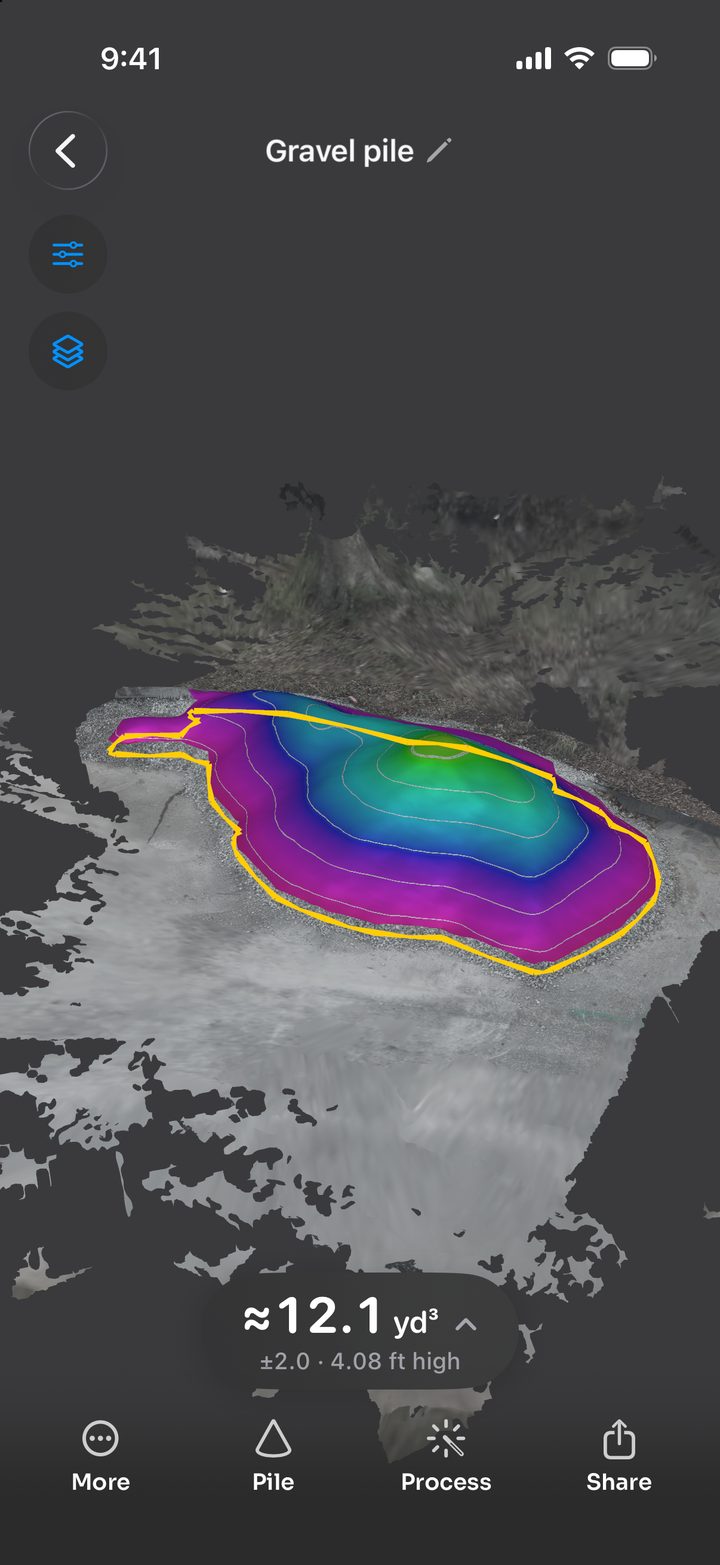
Every result shows its ± range and plain-language checks, like a pile that wasn’t walked all the way around.
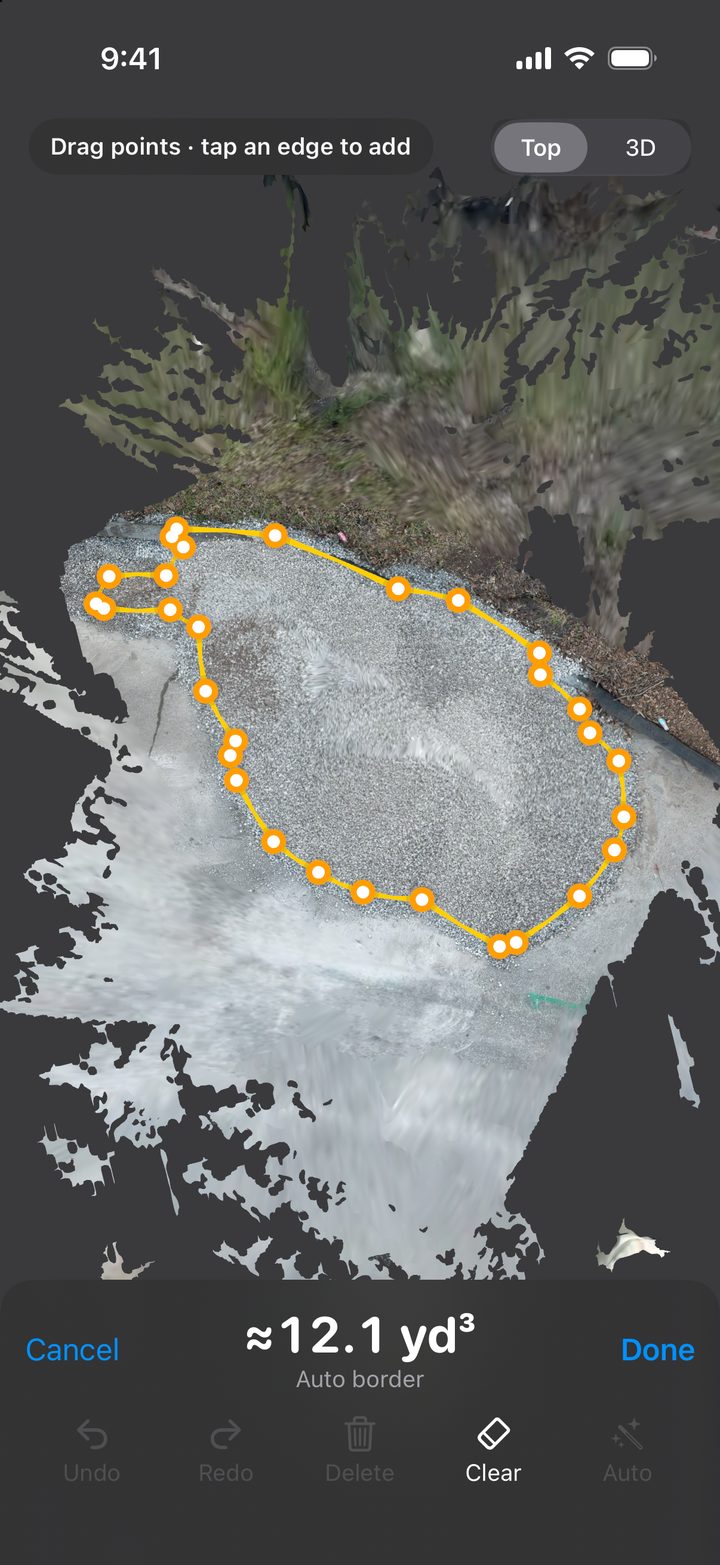
Drag the outline to include exactly the pile you mean; the volume updates as you go.
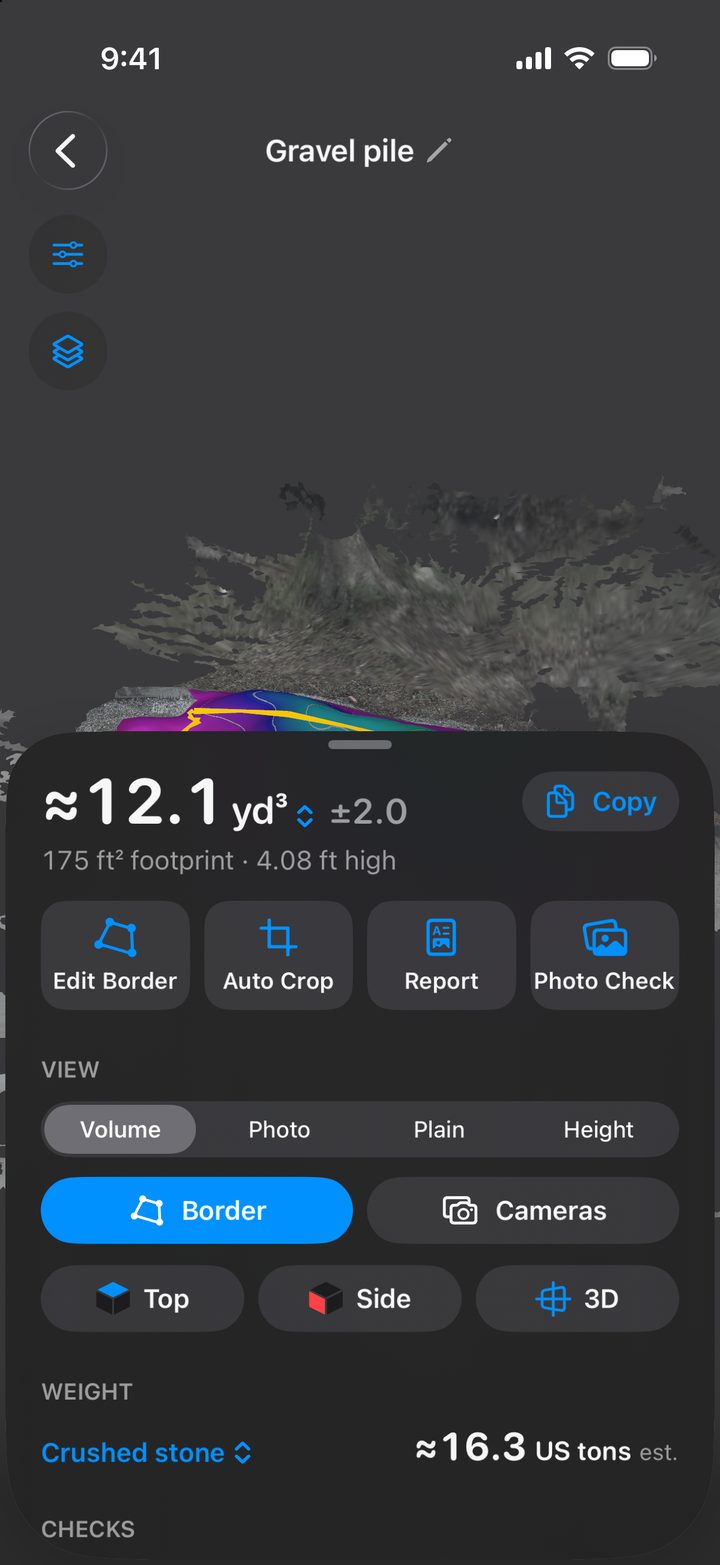
Pick the material or set your own density for an estimate in metric or US tons.
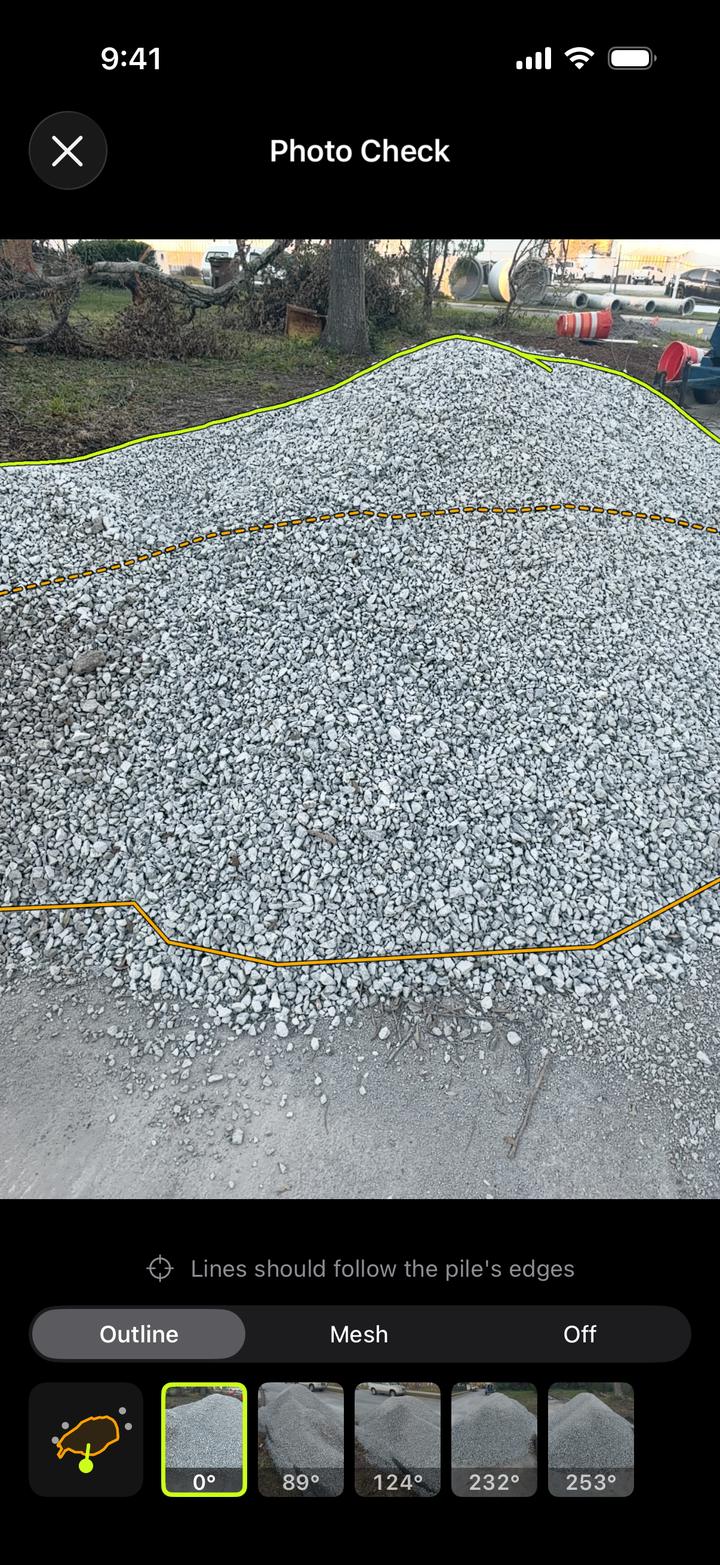
See the measured shape drawn over your own photos.
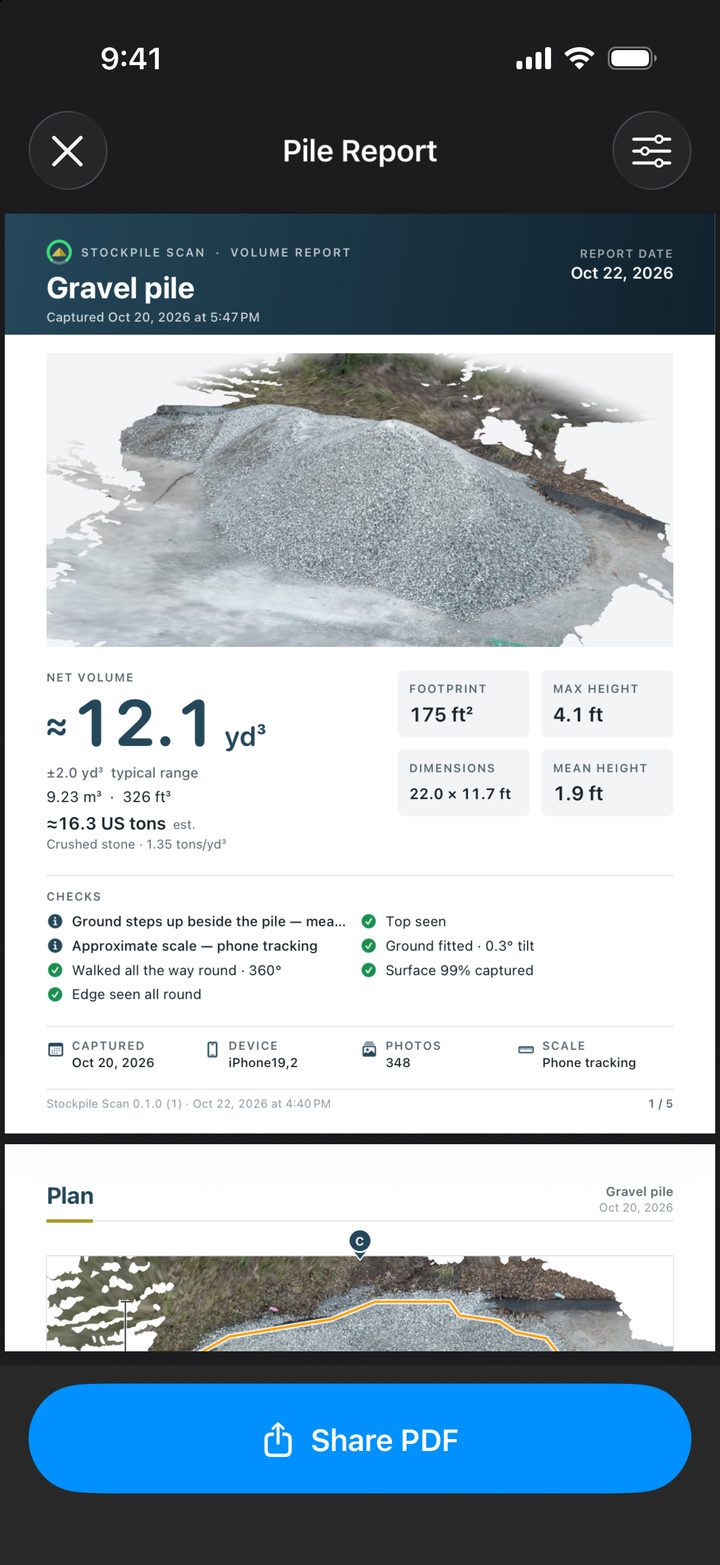
A summary, plan view, elevations, a Photo Check page and capture details, plus a site map when the scan has a location. Letter or A4, ready to share.
Share the mesh or point cloud as OBJ, USDZ, GLB, STL, FBX, PLY, LAS or E57, or as a KMZ for Google Earth.
On Pro models from iPhone 12 Pro on, LiDAR sets the scale and narrows the ± range. Without it, any iPhone with iOS 18 or later can scan.
Free and private
Your scans are processed and kept on your iPhone, and leave it only when you share them. There’s no account to make.
Read the privacy policyYes — no ads, no in-app purchases, no subscriptions.
Any iPhone that runs iOS 18 or later: iPhone XS, XR, SE (2nd generation) and newer. LiDAR is optional.
No. Scanning, processing and the volume all run on the phone. Only the map features need a connection: naming a scan after its street address, and the report’s map page (without a connection, the report leaves it out).
Each volume comes with a ± range worked out from that scan, such as ≈12.1 yd³ ±2.0, and checks that flag anything that could throw it off, like a walk that didn’t go all the way around. LiDAR narrows the range. For the best result, walk all the way around, keep the whole pile in view and scan in good light.
On your iPhone, inside the app. You can also reach them in the Files app under On My iPhone › Stockpile Scan.
Walk around a pile. Get its volume.
Coming soon to the App StoreFree for any iPhone with iOS 18 or later.